Send your coins
How to send exactly the right amount, on the right network, to the right address.
6 stepsReading time: about 3 minutes
Step by step
Step 1 Choose the network first
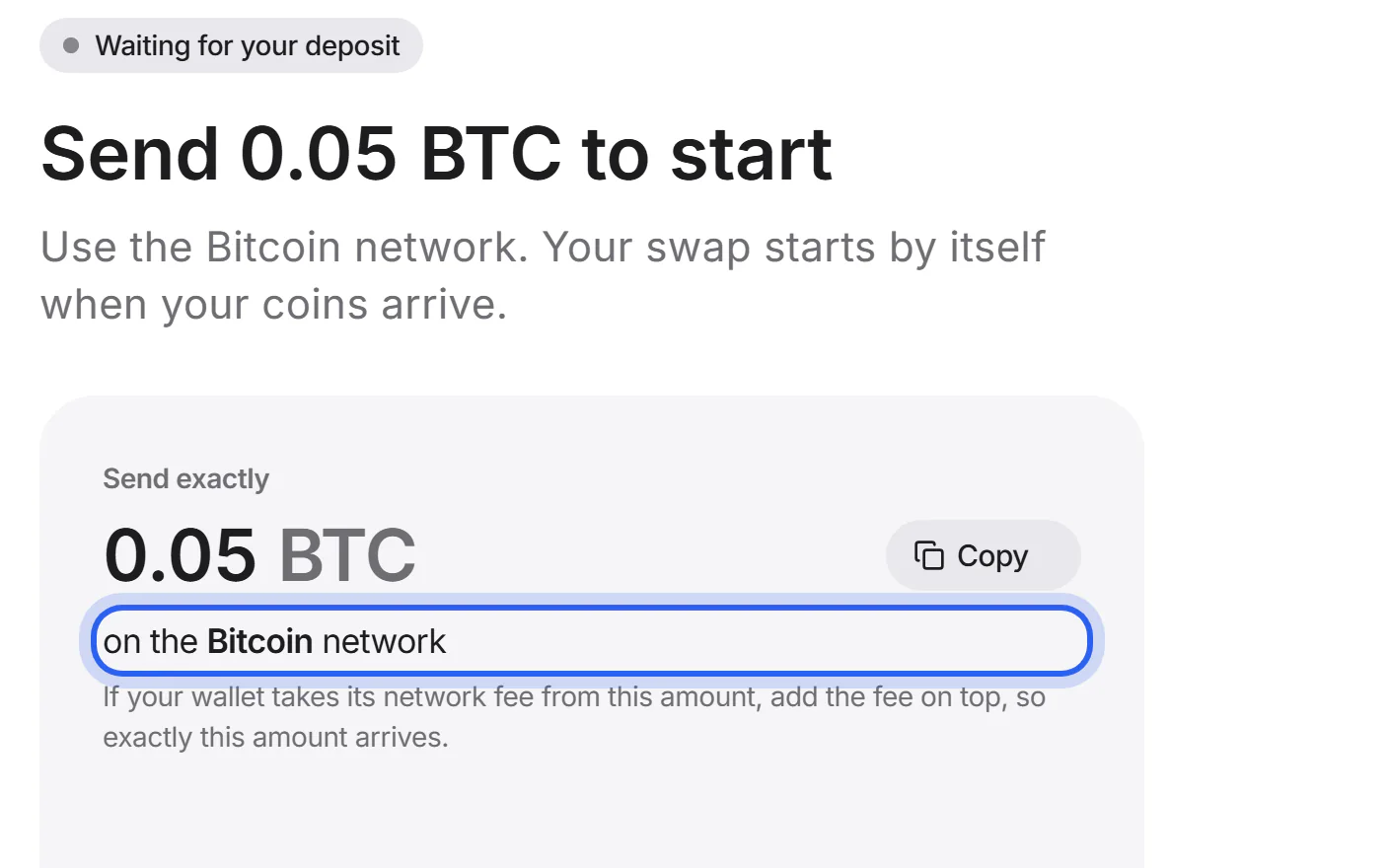
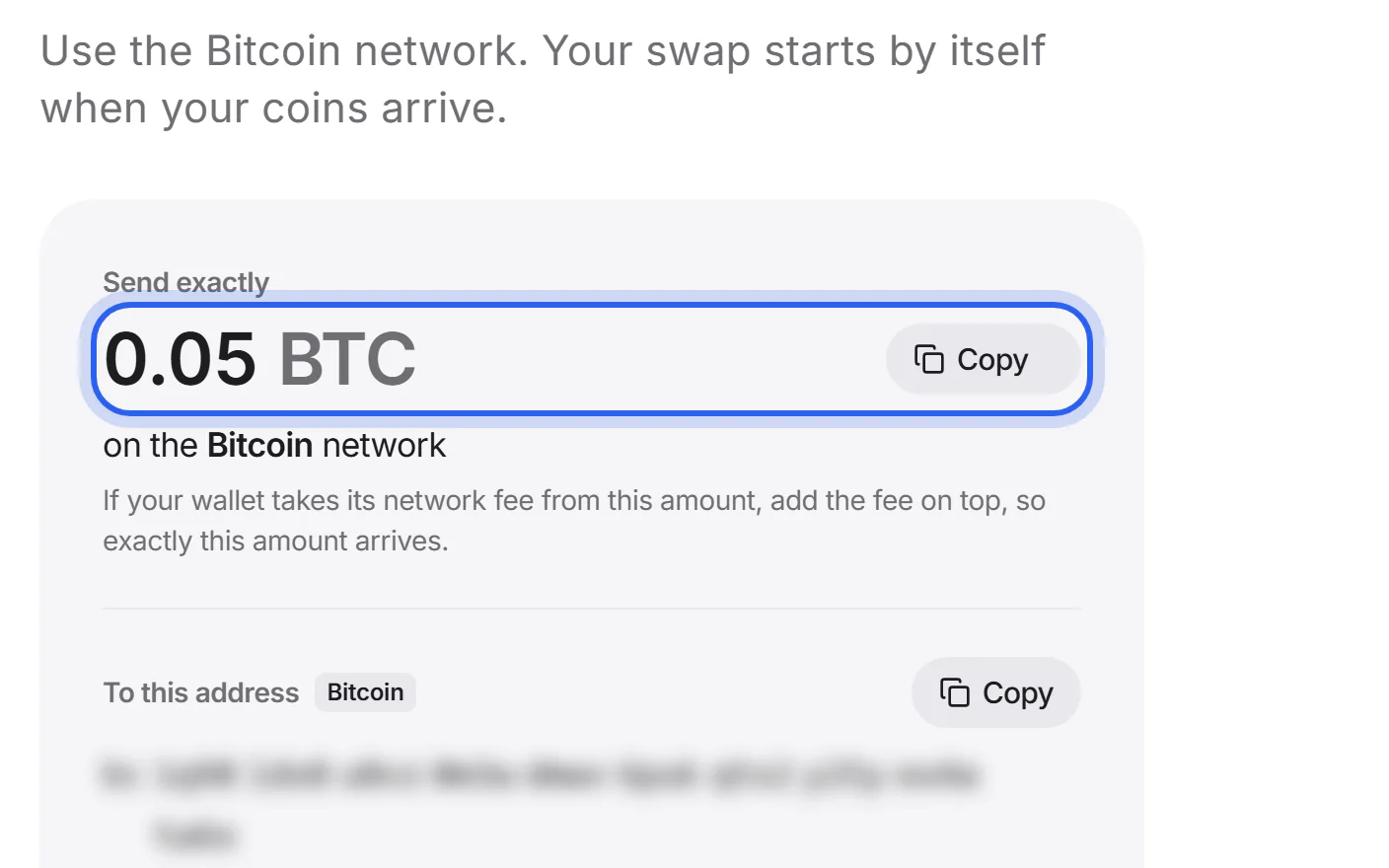
The Send screen names the network next to the amount, for example “on the Bitcoin network”. In your wallet, choose the same coin and the same network.
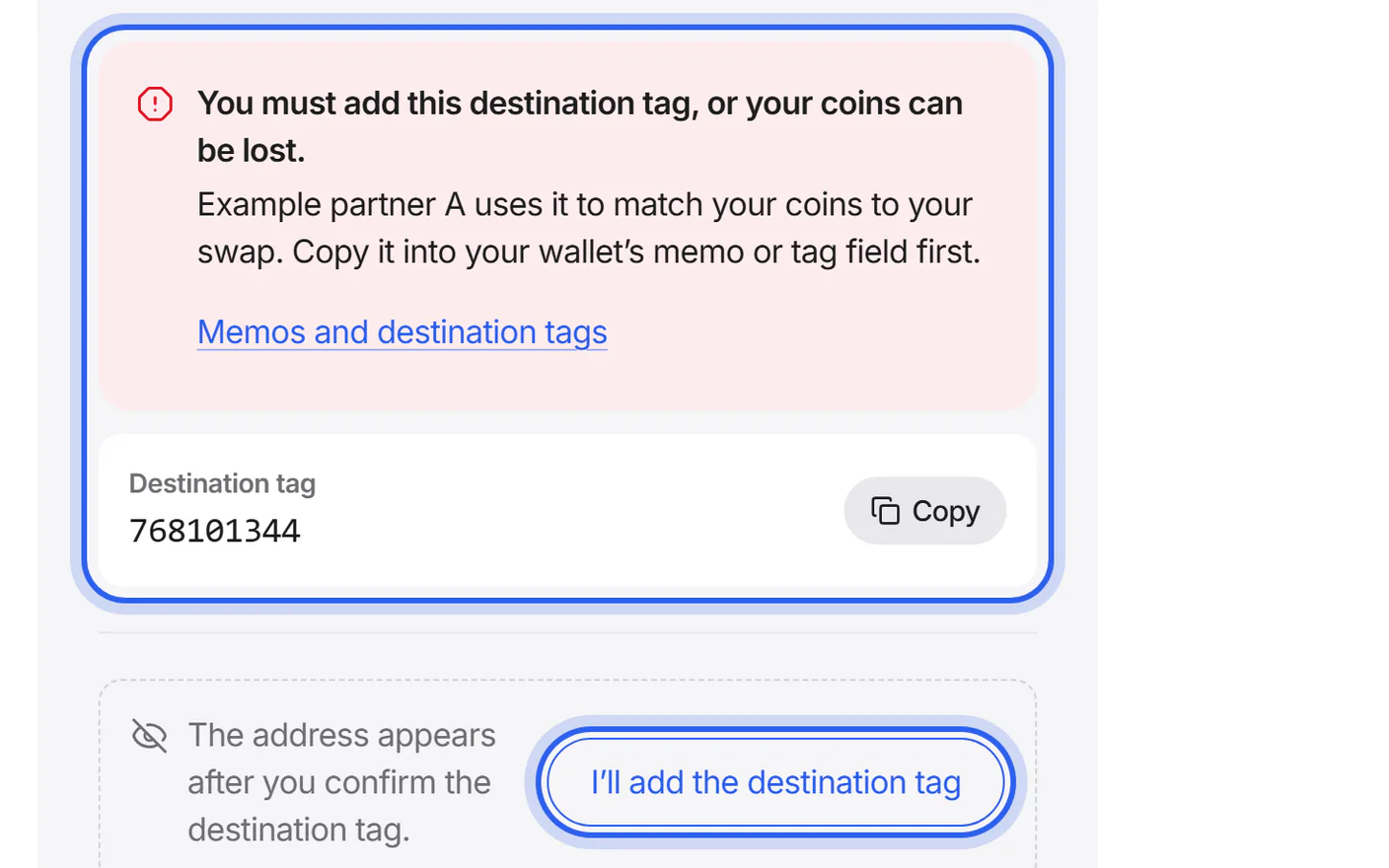
Step 2 Add the memo, if there is one
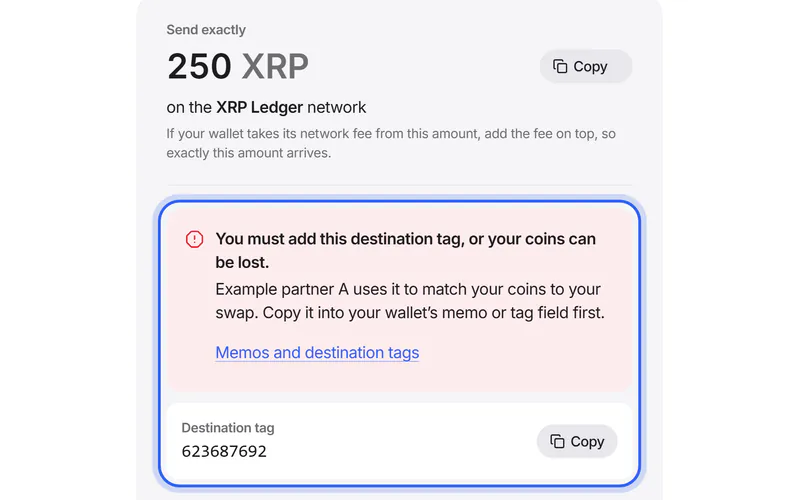
If a memo appears above the address, copy it into your wallet's memo or tag field first, then tap “I'll add the memo”. Without the memo, the partner can't match your coins.
Step 3 Copy the address to send to
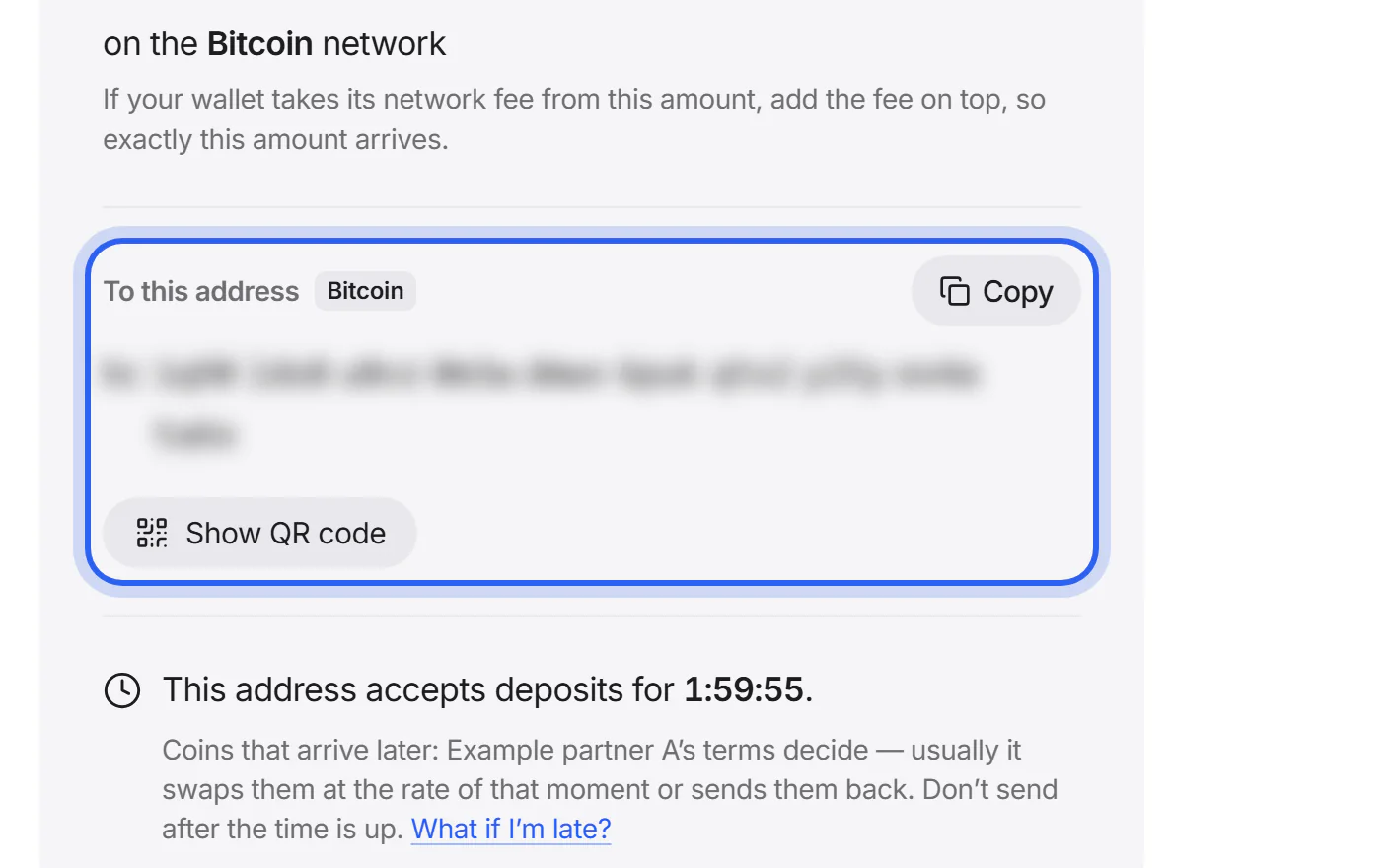
Tap “Copy” next to “To this address” and paste it in your wallet. If your wallet is on another device, tap “Show QR code” and scan it with that wallet; the code holds only the address. Then compare the address in your wallet with the one on the screen.
Step 4 Send exactly the amount shown
Tap “Copy” next to “Send exactly” and send the whole amount in one transaction. If your wallet or exchange takes its fee from this amount, add the fee on top, so the full amount arrives.
Step 5 Send before the time runs out
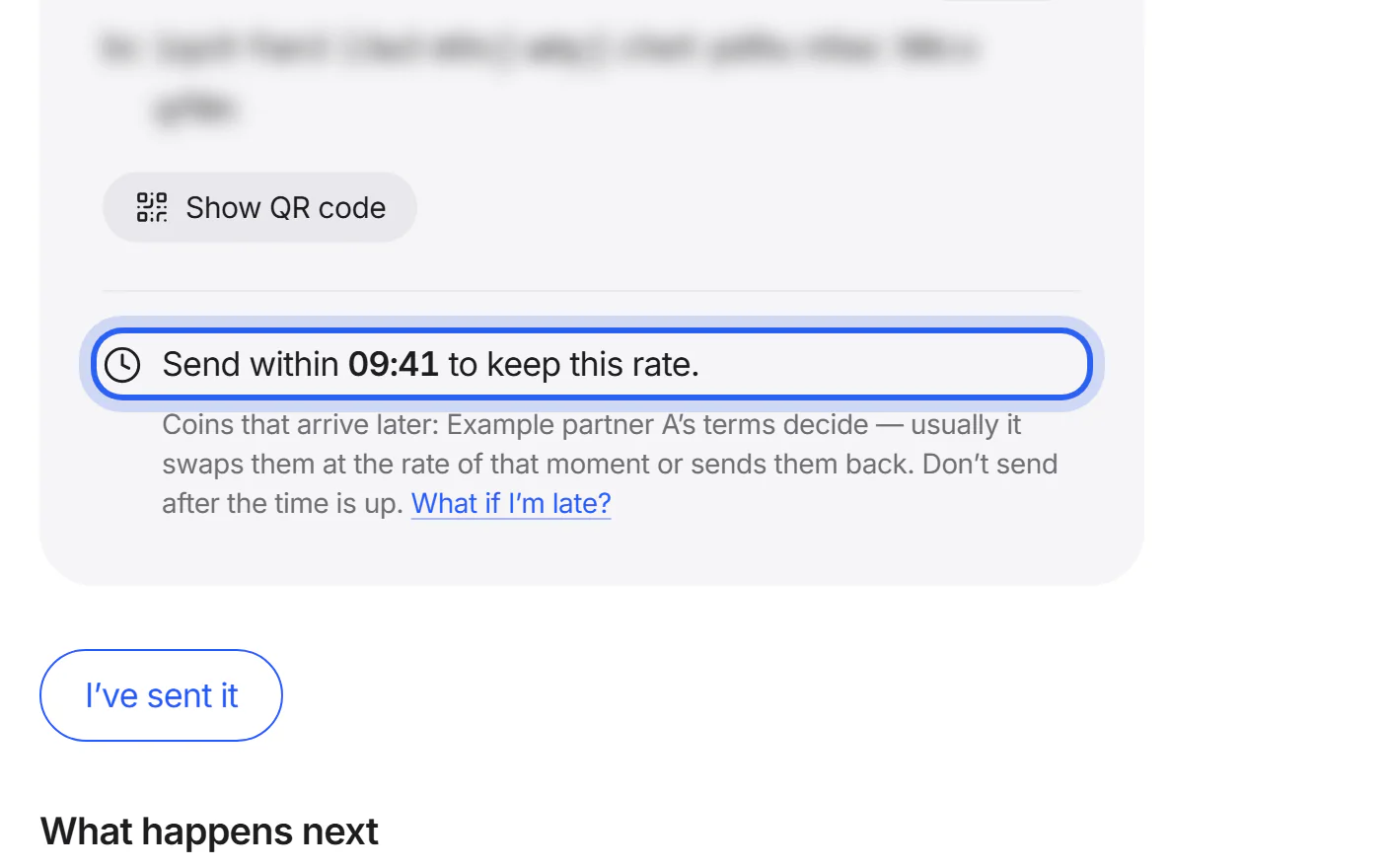
If the partner sets a time limit, the screen counts it down, for example “Send within 09:41 to keep this rate”. It matters most for fixed rates. If your coins arrive after the time limit, the partner's terms decide what happens; send us a support request with your swap ID.
Step 6 Wait for your deposit to be seen
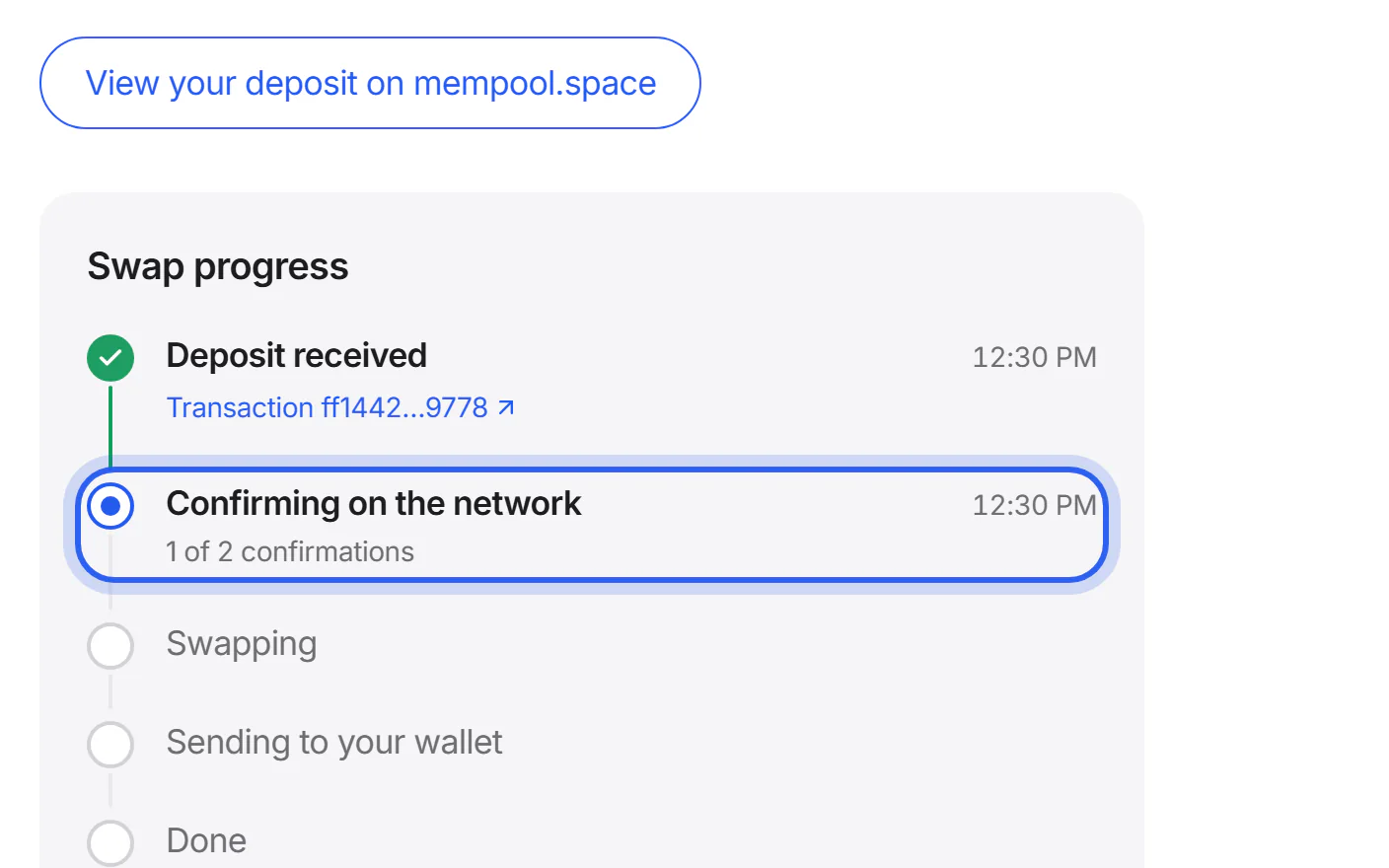
After sending, you can tap “I've sent it”: it only changes this view. The page shows “Looking for your deposit…” and moves on by itself. You can close it; your tracking link opens it again.


If something goes wrong
If you sent more or less than shown
Don't send the difference. The partner's terms decide how to continue, and your swap's page shows the next step.
What to do nowIf you sent after the time limit
Your swap's page shows what happened. The partner usually swaps your coins at the current rate or offers a refund, under its own terms.
What to do nowIf you sent on another network
Don't send more. Keep the transaction ID from your wallet and send us a support request. Recovery isn't always possible and can cost a fee under the partner's terms.
What to do nowIf nothing happens after you sent
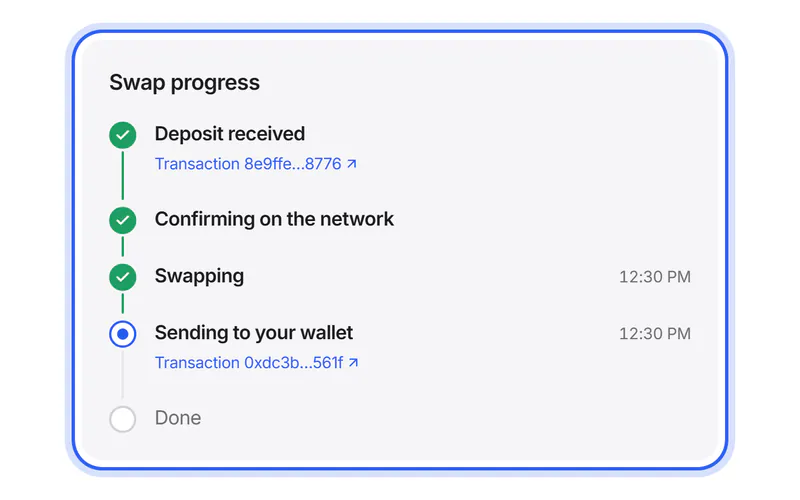
Networks can take a while. Open the transaction in your wallet: if it is still pending there, your swap is waiting for the network. If it is confirmed and your swap's page says “Taking longer than usual”, send us a support request with the transaction ID.
If your swap takes longerWas this helpful?
We only count the answer. No cookies, nothing personal.
Last updated October 17, 2026
Pictures show an example partner and example amounts.